Monday we launched Dynasort Search, Tuesday we opened the hood, and Wednesday we looked at the data. Today is the practical one: how to set it up well, tune it without guessing, and make the results page look like it was built into your theme from day one. Everything below works on every plan.
Choosing your first recipe
Every store gets two ready-made default search recipes. Relevant & Popular is a balanced blend of popularity signals and is the safe pick for most catalogs. In-Stock Bestsellers leans on sales velocity and inventory depth, and demotes sold-out products to the bottom of the results. Activating one of them on the Search page is step one, and for most stores it should stay step one for at least a week. Do not build a custom recipe on day one. The defaults exist so you can start collecting real serve data before you start expressing opinions.
If you sell anything that goes out of stock, In-Stock Bestsellers is worth a hard look. Across our fleet data, recipes that demote sold-out products convert 56 percent above the sorted-fleet average. That is a correlation across many stores, not a guarantee for yours, but it points at something real: shoppers who search have high intent, and a sold-out product in slot one is the fastest way to waste it.
Note that demote means demote, not hide. Dynasort pushes sold-out products to the bottom rather than removing them, because hiding them creates dead ends. A shopper searching for a product they saw last month wants to know whether it is ever coming back, and an empty results page answers the wrong question.
Anatomy of a search recipe
A recipe is a weighted blend of signals. Every product gets one score, and the results page is that score in descending order.
Other signals you can blend: 7-day and all-time sales, view counts, conversion rate windows, days since published, on-sale status, price, margin, and any custom attribute you build from tags, metafields, or an uploaded spreadsheet.
One setting deserves a special mention: the tie-breaker. Search recipes can use Shopify relevance as the tie-breaker, and for search we recommend leaving it there. When two products score the same under your recipe, they fall back to Shopify’s relevance order. On a young store with thin sales data, lots of products tie, so results quietly degrade to plain relevance instead of arbitrary order. As data accumulates, your recipe takes over product by product.
Tuning weights: one at a time, then A/B it
After a week on a default, you will have serve stats and probably a hunch. Maybe new arrivals deserve more lift, maybe margin should count for something. Here is the workflow we recommend, because it is the one that produces conclusions instead of vibes:
- Clone the default recipe. Cloning keeps the original untouched as your baseline.
- Change exactly one weight on the clone. One. If you move three sliders and results improve, you have learned nothing about which slider did it.
- Run an A/B test with the clone against the original on live traffic. Both recipes serve real shoppers, and the recipe page shows serves, clicks, add-to-carts, and checkouts for each.
- Keep the winner, then repeat with the next hunch.
Custom attributes are where tuning gets interesting. If your business has a signal Dynasort cannot see, seasonal priority, supplier lead time, a merchandiser’s picks, you can build it from tags, metafields, or an uploaded spreadsheet, and then weight it in the blend like any built-in signal. If you would rather work through this on a screen share, book a free setup session and we will tune your first recipe together.
Making result cards look native
Ranking is half the job. The other half is a results page that looks like your store built it. Card display settings live in the Dynasort admin and apply per store: badges for sale, new, bestseller, and low stock, each with its own toggle and color; color swatches with shape and style options; compare-at pricing; ratings; a second image on hover; quick add to cart; column counts per device; and results per page.
Then there are option display rules, the setting that fixes messy variant data. They control how variant options render on cards: hide a named option group entirely, split combined option values with a delimiter, and choose which option acts as the visual axis. If your products carry a combined option like “Color / Size”, one rule splits it, hides the size half, and shows clean color swatches, no product data cleanup required.
CSS overrides for designers
The storefront widgets deliberately avoid !important, so your theme CSS wins any fight it picks. For the common adjustments you do not even need a selector, because the widgets expose CSS custom properties you can override from your theme: --ds-cols-mobile, --ds-cols-tablet, --ds-cols-desktop, --ds-aspect, --ds-gap, --ds-radius, --ds-swatch-size, and --ds-max-width. For everything else, the markup uses stable namespaced classes like .dynasort-search__card that will not shift under you between updates.
One gotcha worth pinning to the wall: Online Store 2.0 themes store their colors as bare RGB triples. If you want a card to pick up a theme color, write rgb(var(--color-background)), not var(--color-background). The bare variable is three numbers, not a color, and the browser will silently ignore the rule.
Measuring what changed
Every serve is tracked. The recipe page shows serves, clicks, add-to-carts, and checkouts per recipe, so a tuning change is never a matter of opinion for long. Combined with A/B testing, that turns search merchandising into a loop: watch a week of stats, form a hunch, clone, change one weight, let the test decide. And your existing Shopify setup keeps doing its part, since synonyms configured in Shopify’s free Search & Discovery app flow through automatically, and filters configured there render on the results page and keep working.
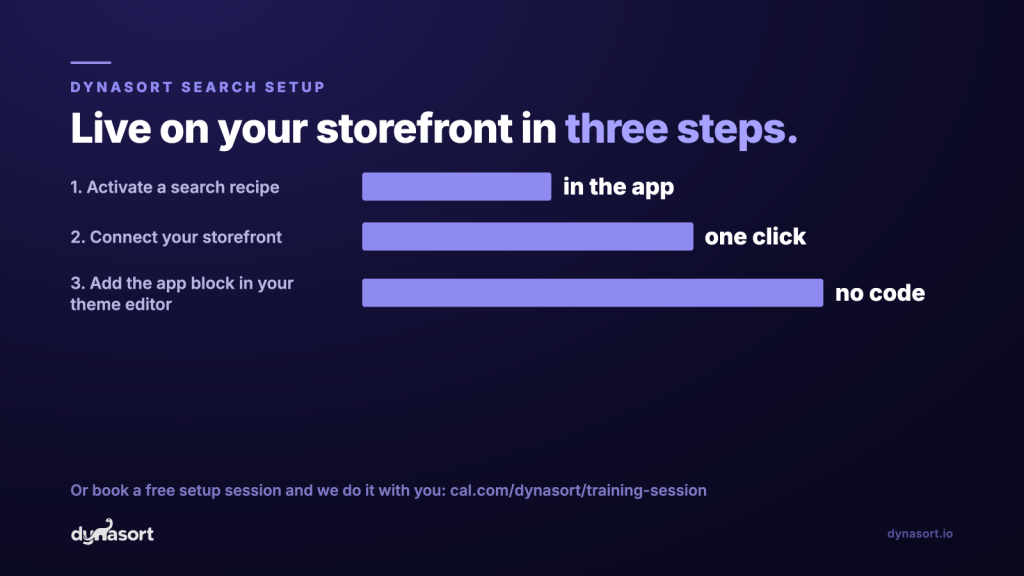
The setup itself is still three steps: activate a recipe, connect your storefront, and add the app block plus the live search embed in your theme editor. Everything in this guide layers on top of that without touching code, except the CSS section, which is there for the designers who want it.
Install Dynasort free for 30 days or read the search docs. Already running Dynasort Search? Book a free training session and we will review your recipe, cards, and stats with you on a screen share.